MiniDisc to digital: NetMD, Hi-MD, ATRAC and optical capture
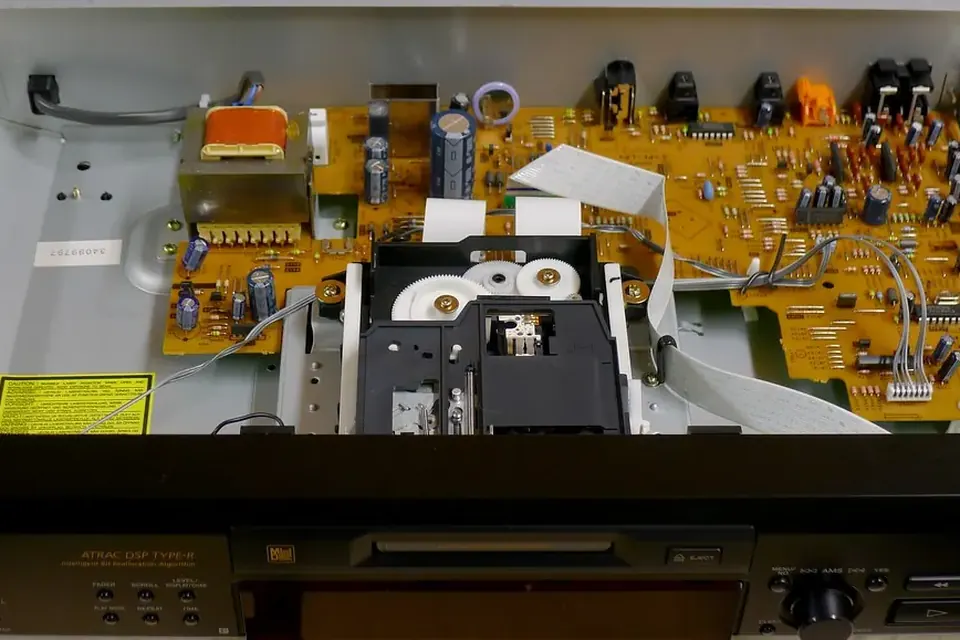
Inside a home MiniDisc deck: the loading mechanism, optical pickup and decoding boards. Photo: deepsonic, Flickr via Openverse, CC BY 2.0.
MiniDisc was the format of choice for many musicians, radio reporters and home tapers from the 1990s into the 2000s. Its discs are robust, but the audio on them is compressed with Sony's ATRAC codec, and the official ways of copying it to a computer were deliberately limited. Knowing which kind of disc and recorder you have decides the route.
What is on a MiniDisc
Sony launched MiniDisc in 1992. Recordable discs are magneto-optical: a laser heats a spot of the disc while a magnetic head writes it, which makes them far less sensitive to stray magnetism than tape. Audio is stored in compressed form:
| Mode | Codec | Where you find it |
|---|---|---|
| SP (stereo) and mono | ATRAC | Every MiniDisc recorder; the original format |
| LP2 and LP4 (MDLP) | ATRAC3 at lower bit rates | Recorders from around 2000 onwards; LP4 trades quality for running time |
| Hi-SP, Hi-LP | ATRAC3plus | Hi-MD recorders, on Hi-MD formatted media |
| PCM | Uncompressed linear PCM | Hi-MD recorders only |
Because ATRAC is lossy, a MiniDisc transfer cannot recover more than was recorded. The aim is to avoid losing anything further: no extra compression steps, no analogue round trip if a digital one is available.
Route 1: real-time capture from an optical output
Most home MD decks and many portables have an optical (TOSLINK) digital output. Playing the disc into an audio interface with an optical input gives you the decoded audio as a digital stream, typically at 44.1 kHz. This is the most universal route and works with any disc the player can read, including discs recorded on other machines.
- Connect the optical output to the interface's optical input and set the interface to sync to the incoming signal.
- Record at 44.1 kHz in the software (at 24 bits if you like; 16-bit samples fit unchanged), with any sample-rate conversion turned off.
- Play the whole disc and record it as one file, then split into tracks using the track marks you hear or see on the player's display.
It runs in real time and the result is a decoded copy, not the original ATRAC data, but it is clean and simple. An analogue line output works too if there is no optical port; it adds a conversion step and some noise.
Route 2: NetMD over USB
NetMD recorders, from the early 2000s, connect to a computer by USB. Sony's SonicStage software used it mainly to send music to the recorder. Uploading recordings from disc to computer was restricted on standard NetMD units, as a copy-protection measure. Users of these machines report that tracks copied in from a computer could not be uploaded back.
Sony's software is long discontinued. Independent, open-source tools such as Web MiniDisc Pro, which runs in a browser, can manage NetMD devices (titles, track lists, transfers to disc) on current systems. What a given tool can upload depends on the recorder model, so check the project's own documentation for your unit.
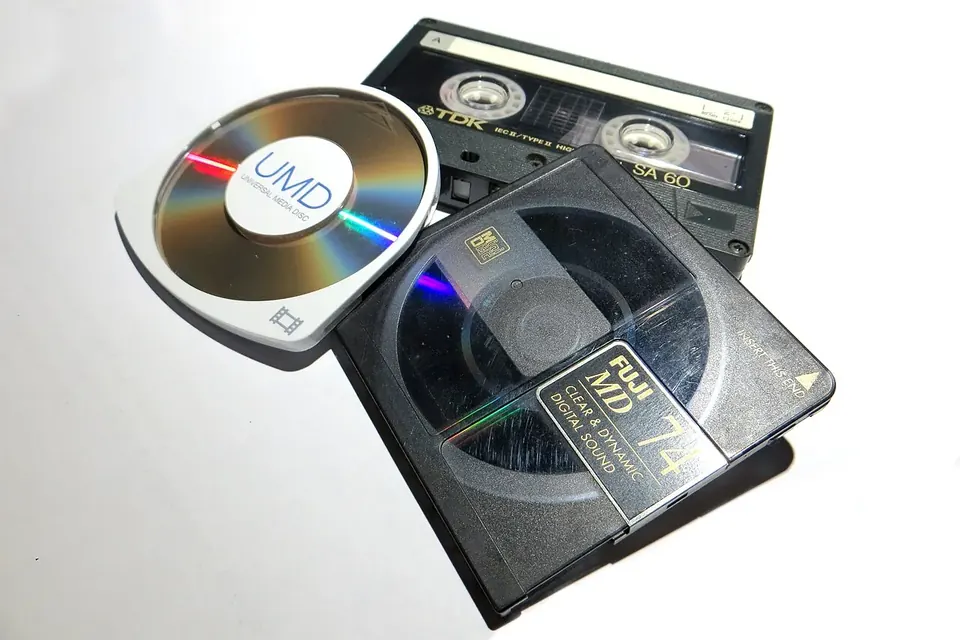
Route 3: Hi-MD, and the recorder that uploads standard discs
Hi-MD recorders, introduced in 2004, could record uncompressed PCM and upload their own Hi-MD recordings to a computer. One model is singled out by MiniDisc enthusiasts: the Sony MZ-RH1, released in 2006 (also sold in a version called MZ-M200). According to the long-running reference site minidisc.org, it uploads recordings made on standard MDs in any mode to a computer, as PCM or in their original ATRAC form. That makes it the most direct way to copy a large collection of old SP and LP discs, but the units are now sought after and their prices reflect it.
If you can upload the original ATRAC data, keep it alongside a decoded WAV or FLAC copy. The ATRAC file is the closest thing to the original; the PCM file is what most software will open in twenty years.
Practical points for any route
- Read the table of contents first. A disc whose TOC was not written (a recorder that lost power mid-session, for instance) may show as blank or have missing tracks. Do not record anything to such a disc; specialist tools and services can sometimes recover the audio.
- Note the mode. The player's display usually shows SP, LP2 or LP4. Write it in your log.
- Keep titles. Disc and track titles typed in years ago are often the only record of what a recording is. Photograph the display or copy them out before anything else.
- Do not re-encode lossy audio to another lossy format. If you need MP3s for a phone, make them from the decoded WAV or FLAC master.
- Clean optics gently or not at all. Skipping can be a dirty lens, but the pickup is delicate. Follow the service manual, or try another player first.
Checking a secondhand player for the job
If you are buying a deck or portable to transfer a collection, test it with a disc you do not care about. It should read the table of contents quickly, play without skipping when lightly tapped, and record and erase a short track if you plan to use it for recording. Check that the optical output is present and works, that the display shows titles, and on portables that the battery compartment is free of corrosion. A recorder with a failing laser may read some discs and not others.
Storing the discs afterwards
MiniDiscs sit in a protective shell and are generally sturdy. Keep them in their cases, upright, away from heat and direct sun, and away from strong magnets as a precaution. Label the shell, not the shutter. Then put the files into the same backup routine as the rest of your home archive.
Sources
- minidisc.org, Sony MZ-RH1 (features and upload behaviour reported by users).
- Web MiniDisc Pro, project site and documentation.
- Mediageek, Uploading the old MiniDiscs, 2006.
- IASA, IASA-TC 04 guidelines (handling of digital carriers).
- Library of Congress, FLAC format description.
 Recording & transfer
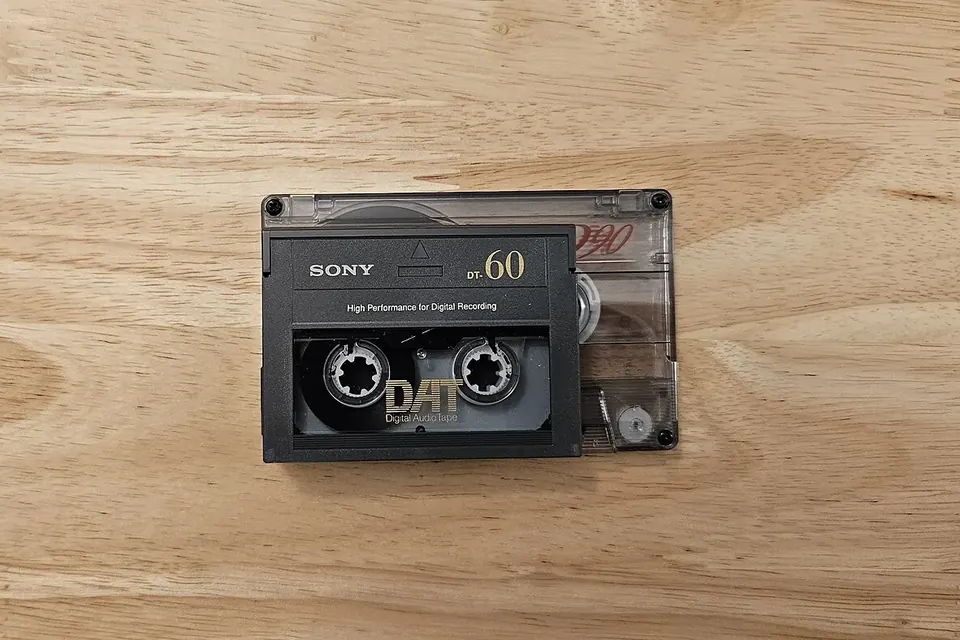
Getting audio off DAT tapes
A healthy deck, a digital output, the native sample rate, and a check for errors.
 Recording & transfer
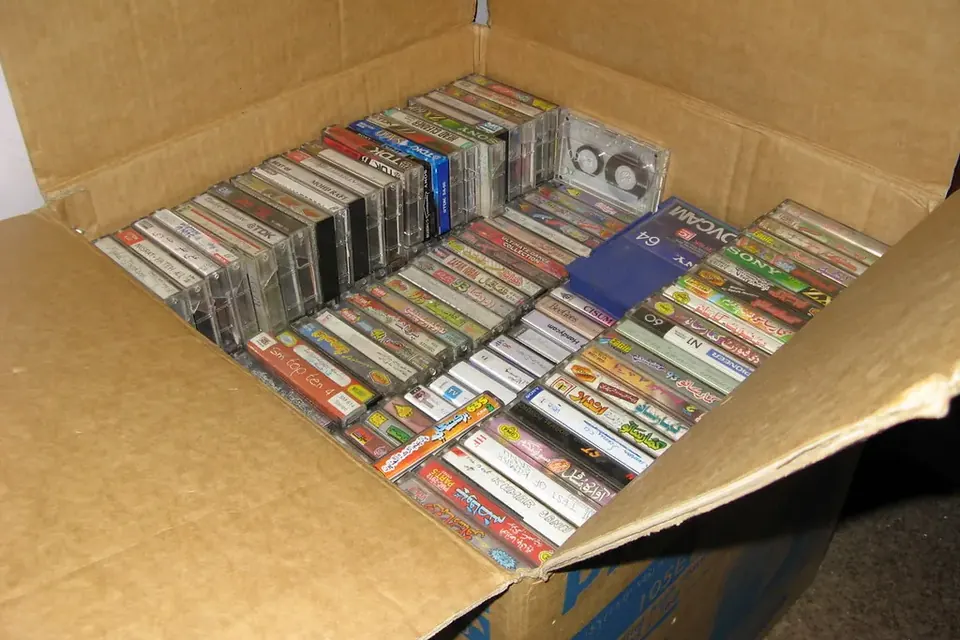
Digitising a home music archive
Sort, prioritise, capture once, name it well, keep three copies. The plan behind every transfer guide.
 Recording & transfer
Reel-to-reel and cassette to digital
Check the tape first, set azimuth by ear, decode noise reduction correctly, capture at 24 bits.